Expand Disk Space on a VMware Linux VM Without Rebooting

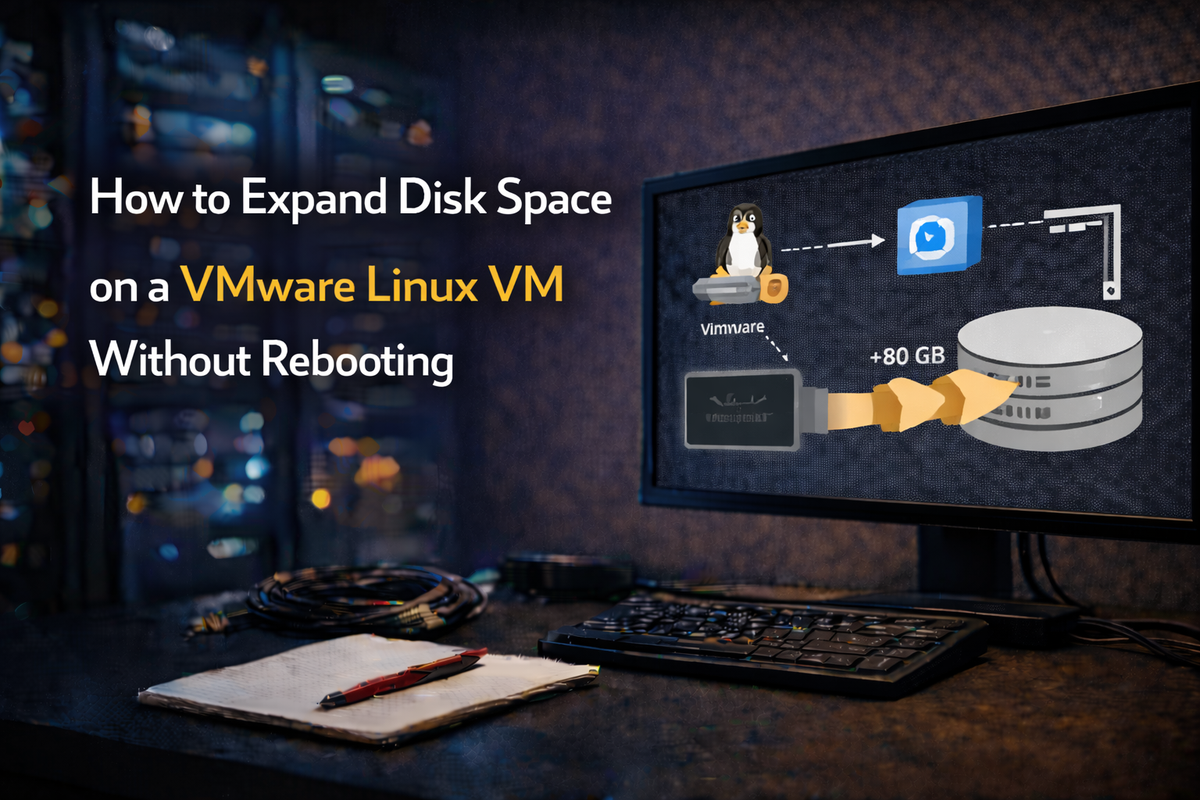
Say goodbye to downtime when you need more storage
Running out of disk space on a production VM is stressful enough without the added headache of scheduling a reboot. The good news? If you're running Linux on VMware, you can expand your disk and have the guest OS recognise the new space immediately — no reboot required.
In this guide, I'll walk you through the entire process, from expanding the VMDK in vSphere to resizing your filesystem inside the VM.
Understanding the Problem
When you increase the size of a virtual disk in VMware, the hypervisor knows about the change immediately. However, the Linux guest operating system doesn't automatically detect this change. It still sees the old disk size because the SCSI device information is cached.
Traditionally, a reboot would force Linux to re-read the disk geometry. But in production environments, reboots mean downtime — and downtime means unhappy users.
The Solution: SCSI Rescan
Linux provides a way to force the kernel to re-read disk information through the /sys filesystem. There are two scenarios to consider:
Scenario 1: Resizing an Existing Disk
If you've expanded an existing VMDK, you need to tell the specific block device to refresh its boundary information:
echo 1 > /sys/block/sda/device/rescan
Replace sda with your actual device name (e.g., sdb, sdc). This command tells the SCSI block device to refresh its information about where its ending boundary is, giving the kernel updated size information.
Scenario 2: Adding a New Disk
If you've hot-added a completely new disk to the VM, you need to scan the SCSI host adapter for new devices:
echo "- - -" > /sys/class/scsi_host/host0/scan
The three dashes represent wildcards for channel, target, and LUN respectively. To scan all adapters at once:
echo "- - -" | tee /sys/class/scsi_host/*/scan
Step-by-Step: Expanding an Existing Disk
Here's the complete workflow for expanding an existing disk on a running Linux VM:
Step 1: Expand the VMDK in vSphere
- Open the vSphere Client
- Right-click your VM and select Edit Settings
- Find the hard disk you want to expand
- Increase the size to your desired capacity
- Click OK
Step 2: Rescan the Disk in Linux
First, identify which device you're working with:
lsblk
Then trigger a rescan on that device:
echo 1 > /sys/block/sda/device/rescan
Verify the new size is detected:
fdisk -l /dev/sda
Step 3: Expand the Partition
If you're using growpart (recommended), this is straightforward:
# Install growpart if needed (part of cloud-utils-growpart package)
yum install cloud-utils-growpart   # RHEL/CentOS
apt install cloud-guest-utils      # Debian/Ubuntu

# Grow the partition (partition 2 in this example)
growpart /dev/sda 2
Step 4: Resize the Filesystem or LVM
For LVM setups, resize the physical volume first:
pvresize /dev/sda2
Then extend your logical volume:
lvextend -l +100%FREE /dev/mapper/vg_name-lv_name
For ext4 filesystems:
resize2fs /dev/mapper/vg_name-lv_name
# Or for a direct partition:
resize2fs /dev/sda2
For XFS filesystems (common on RHEL/CentOS 7+):
xfs_growfs /mountpoint
Step 5: Verify the Changes
Confirm everything worked:
df -h
You should see your filesystem now reporting the expanded size.
Quick Reference Commands
| Task | Command |
|---|---|
| Rescan existing disk | echo 1 > /sys/block/sdX/device/rescan |
| Scan for new disks | echo "- - -" | tee /sys/class/scsi_host/*/scan |
| Grow partition | growpart /dev/sdX N |
| Resize LVM PV | pvresize /dev/sdXN |
| Extend LV | lvextend -l +100%FREE /dev/vg/lv |
| Resize ext4 | resize2fs /dev/path |
| Resize XFS | xfs_growfs /mountpoint |
Important Caveats
- Shrinking is different: This process is for expanding disks. Shrinking requires different steps and carries more risk
- Backups first: Always have a backup before modifying disk structures, even if the procedure is well-tested
- VMware Tools: Ensure VMware Tools is installed and running for best results
Conclusion
Expanding disk space on a VMware Linux VM without rebooting is not only possible — it's straightforward once you understand the process. The key insight is that Linux caches disk geometry, and the /sys filesystem gives us a way to force a refresh.
By combining VMware's hot-expand capability with Linux's SCSI rescan feature, you can handle storage emergencies without any downtime. Your users will thank you, and you'll sleep better knowing you have this technique in your toolkit.
Have questions or tips of your own? Drop them in the comments below!